PDFMon

iOS · Android

PDFDOCXLSPPTTXTHWP

Read it, or let the phone read it to you.

Every document already on your device, sorted and ready — plus the ones sitting on your PC. Pull out the keywords, hear it read aloud, and never mail a file to yourself again.

Free. Works offline.

Library screen listing documents by type with counts
  • PDF.pdf
  • DOC.doc .docx
  • XLS.xls .xlsx
  • PPT.ppt .pptx
  • TXT.txt .csv
  • HWP.hwp .hwpx

Office and HWP files can also be converted to PDF.

What the app does

Four tabs, no menus to learn.

Library

Your documents, already there

The app scans your device on first launch and lists everything it can open — newest first, with size and date. Filter by type, sort by name or size, browse by folder, and select several at once to delete them. Nothing to import.
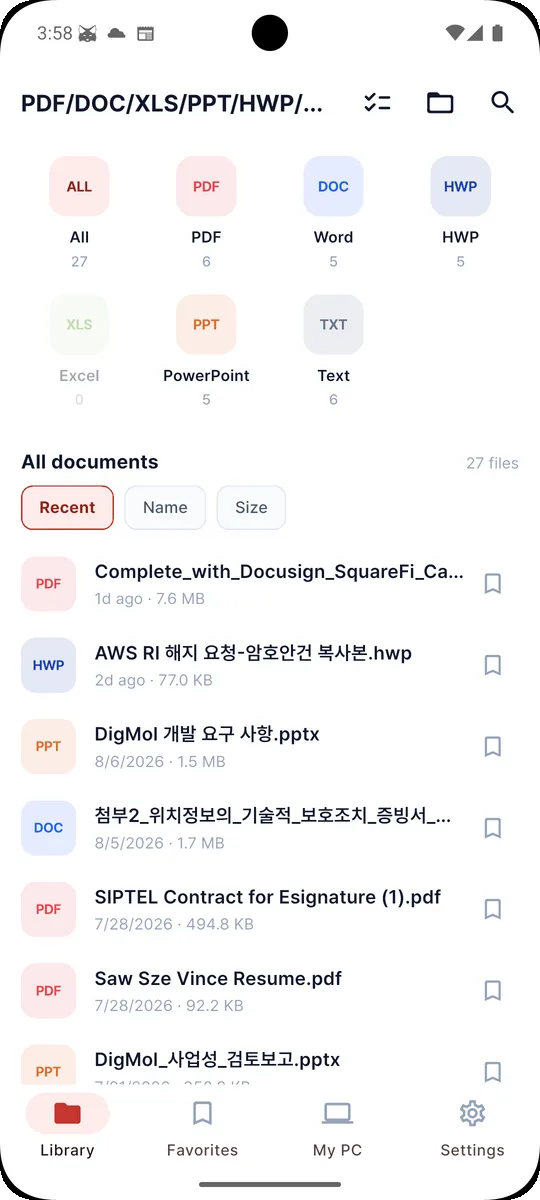
Library screen listing documents by type with counts

Reader

Built for long documents

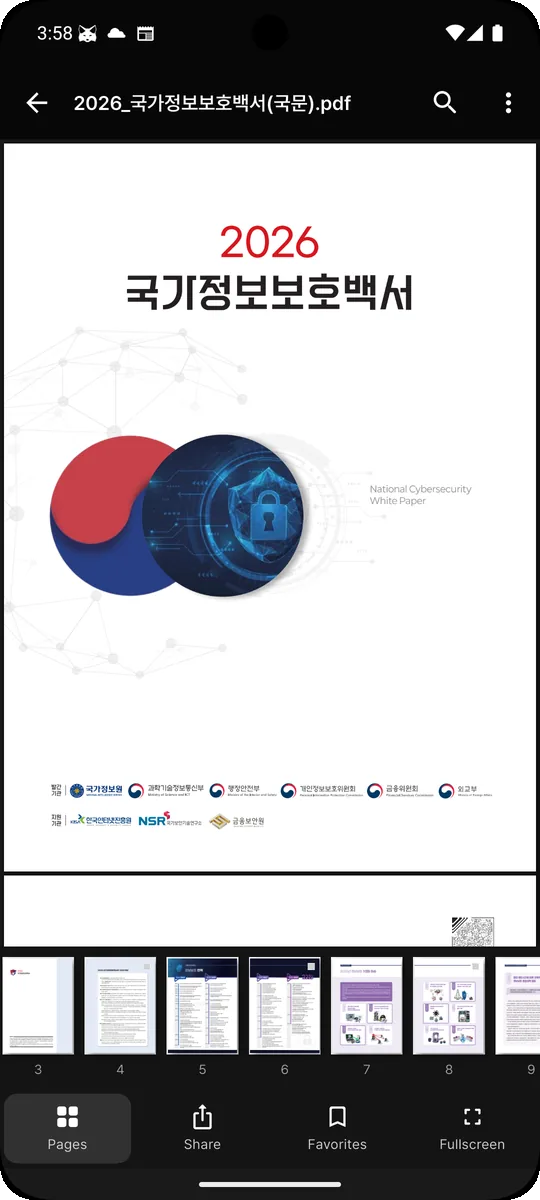
A four-hundred-page report opens as fast as a one-page memo. Skim the whole thing from the thumbnail strip, jump to any page, go fullscreen when you want the text and nothing else.

Page thumbnail strip along the bottom of a long PDF

One menu

Analyse, listen, or convert

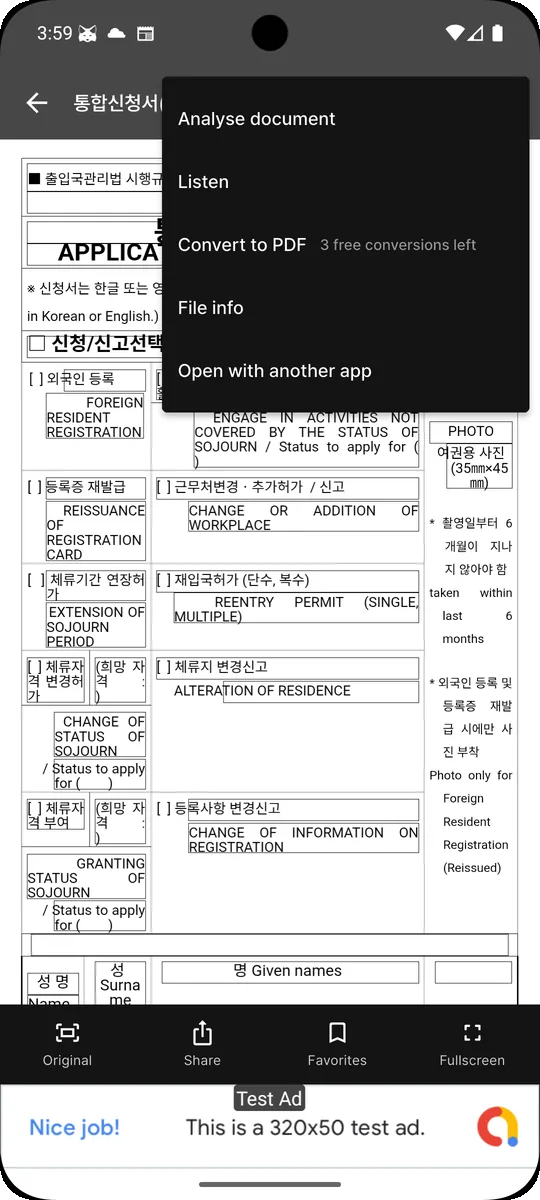
Everything a document can do sits behind one button: break it down, have it read aloud, turn an Office or HWP file into a PDF, check the file details, or hand it to another app.

Document menu showing analyse, listen and convert to PDF

Analyse · runs on your device

Find out what a document says before you read it

One tap breaks a document into three views. The first two are computed on your phone — nothing is uploaded, and they work with no signal at all.

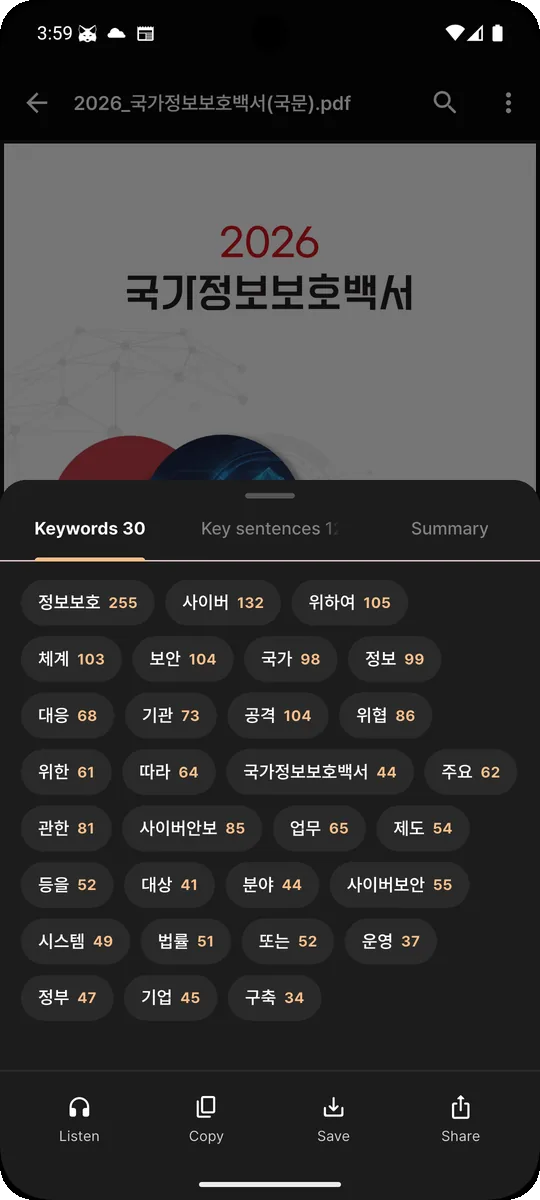
  1. Keyword chips with occurrence counts

    1Keywords

    The terms the document actually leans on, with how often each appears. Tap one to land on the page it came from.

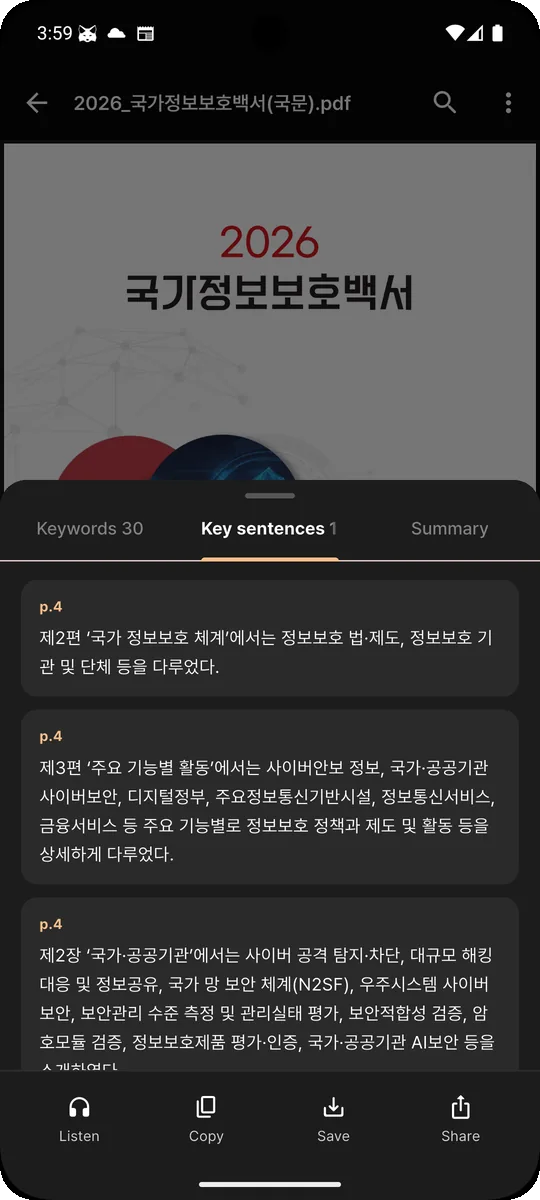
  2. Extracted key sentences with page references

    2Key sentences

    The handful of lines that carry the argument, each tagged with its page number.

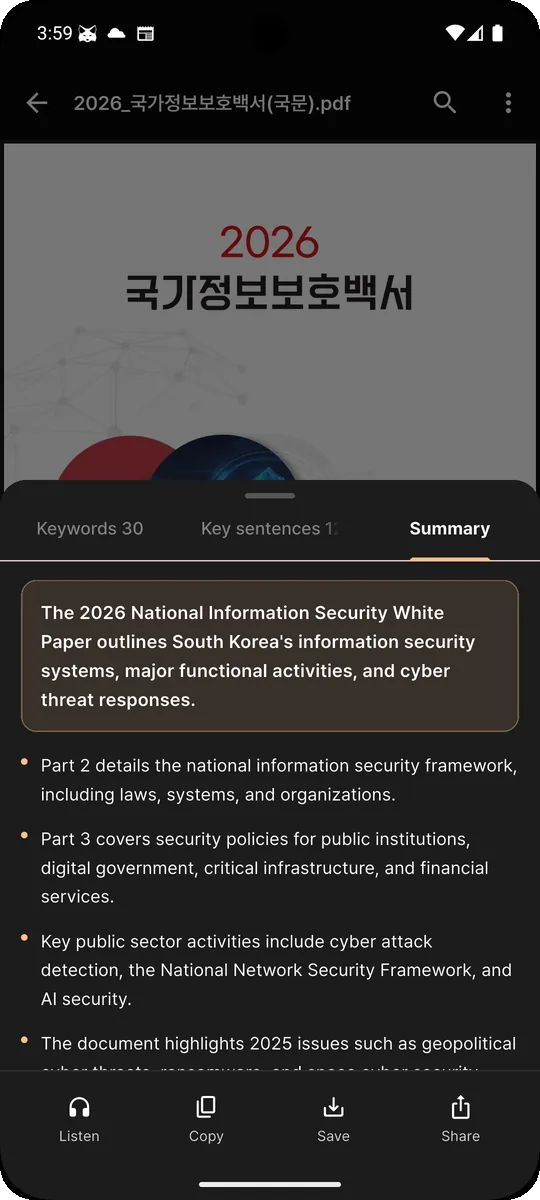
  3. AI-generated summary with bullet points

    3AI summary

    A short plain-language brief with the main points as bullets. This is the one step that uses a server.

Listen to the result, copy it, save it, or share it to any app.

My PC · included free

Open a document that is sitting on your PC

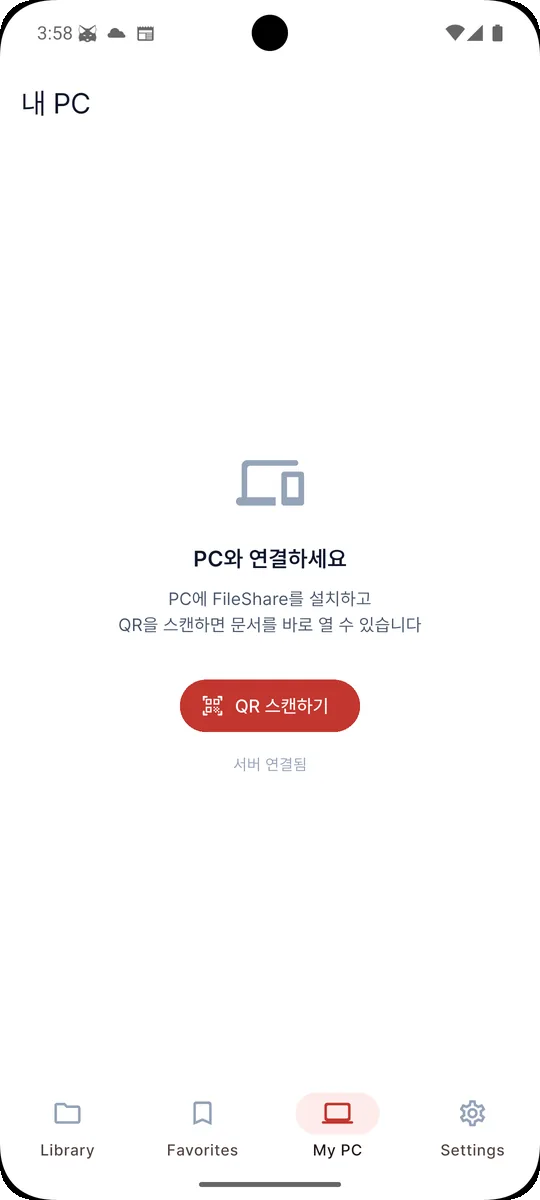
Install FileShare on your computer, scan the QR code once, and your PC library shows up in the My PC tab. No mailing files to yourself, no messenger, no cloud upload — the file moves directly between your two devices.

  • Leave your PC switched on and reach its documents from anywhere in the world.
  • Send a file you downloaded on your phone back to your PC.
  • Both ends verify each other before a transfer starts.
  • Turn on auto-connect and the phone answers whenever your PC asks.
  • Free, with no limits. Premium covers the ads and the usage caps — not this.
Get FileShare for PC
Open a document that is sitting on your PC
Your phone Your PC Mutually authenticated

FileShare for PC · free

The other half lives on your computer

FileShare is a small Windows program that pairs with the app. Pick the folders you want reachable, and they show up on your phone. Your phone’s documents show up on the PC the same way — no cable, no cloud account, no mailing files to yourself.

Download for Windows v1.0.2 · Windows 10/11 (64-bit) · 34 MB
FileShare-1.0.2-setup.exe

Unlinking a phone now applies on both sides immediately.
Duplicate files are no longer re-downloaded.

  1. Install FileShareRun the installer on the PC that holds your documents.
  2. Scan the codeClick Connect device, then scan the QR from the My PC tab.
  3. Pick your foldersAdd the folders you want reachable. That is the whole setup.
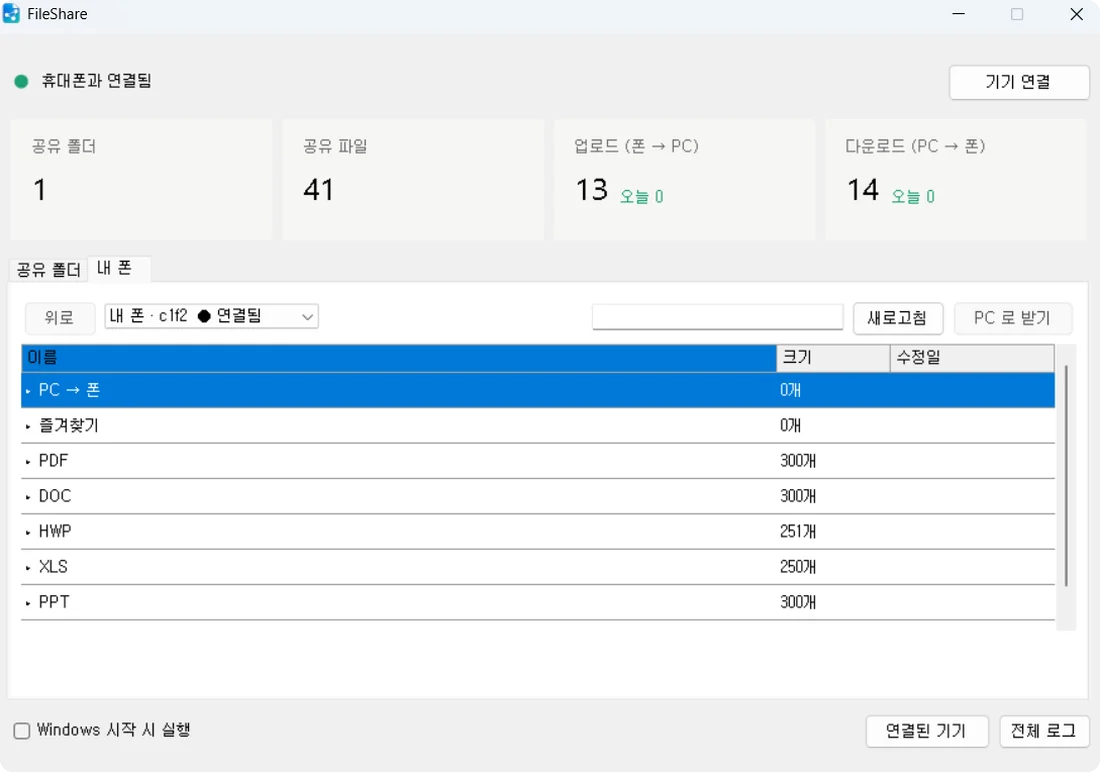
FileShare on Windows browsing the phone library by file type
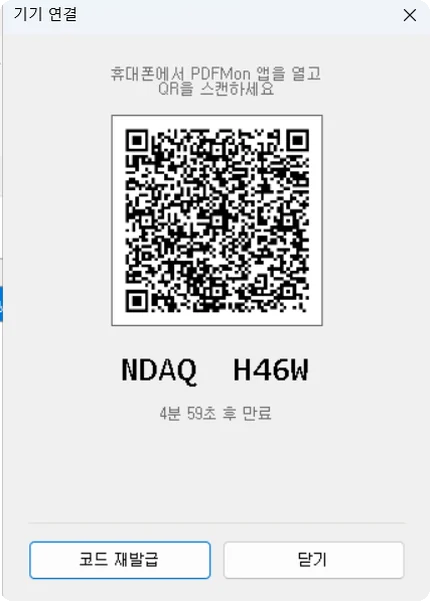
  • FileShare pairing dialog with a QR code and a short pairing code

    Pair with a QR code

    The PC shows a code that expires in five minutes. Nothing to type, no account to create, and an expired code is useless to anyone who photographs it later.

  • FileShare showing the phone library grouped by file type

    Browse your phone from the PC

    Your phone’s library appears sorted by type — PDF, DOC, HWP, XLS, PPT, favorites. Open one, or pull it down to the computer.

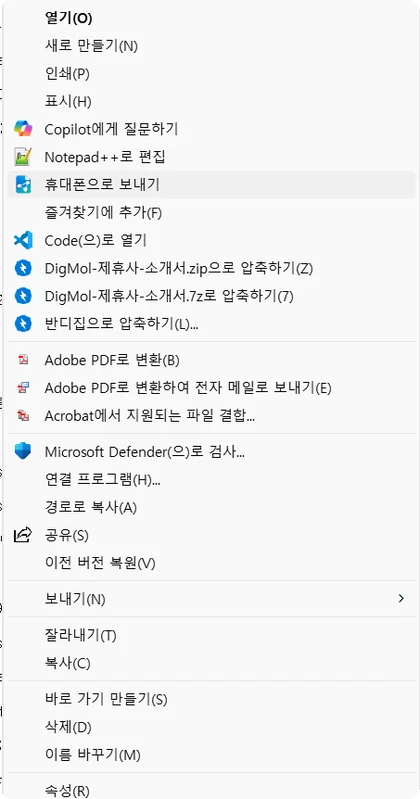
  • Windows Explorer context menu with the Send to phone entry

    Send from the right-click menu

    FileShare adds "Send to phone" to Windows Explorer. Right-click any file and it is on your phone before you have found the app.

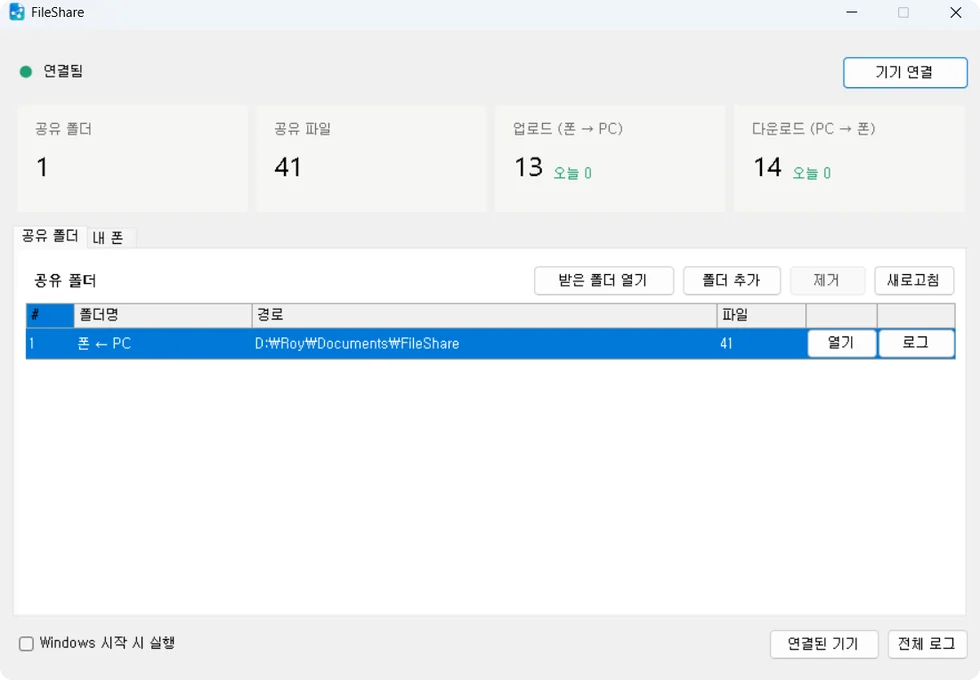
  • FileShare shared folders tab with one folder listed

    Choose what is shared

    Only the folders you add are reachable. Everything else on the PC stays invisible to the phone, and you can remove a folder at any time.

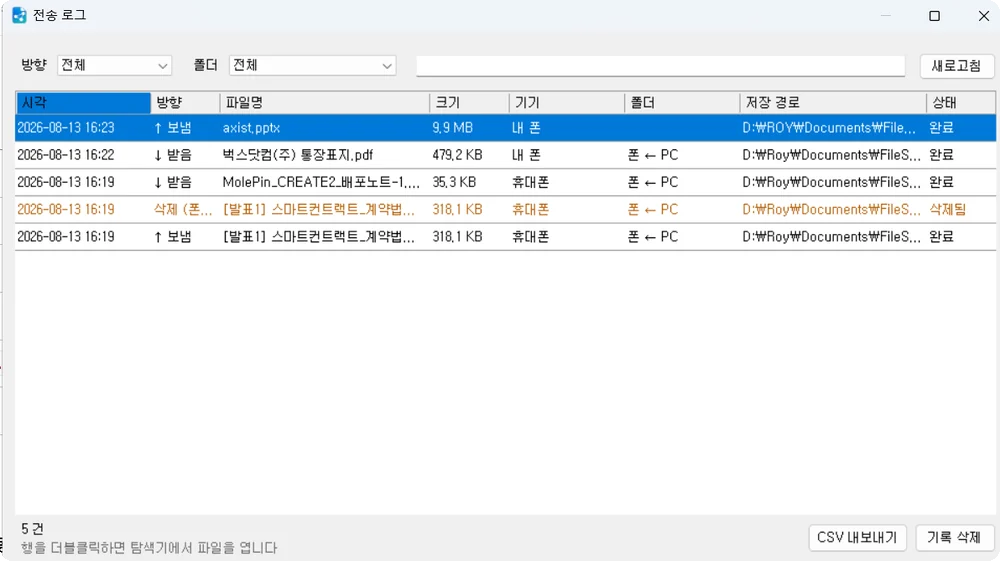
  • FileShare transfer log listing files with direction and status

    See every transfer

    A log records what moved, which way, how big it was and where it landed. Double-click a row to open the file, or export the lot to CSV.

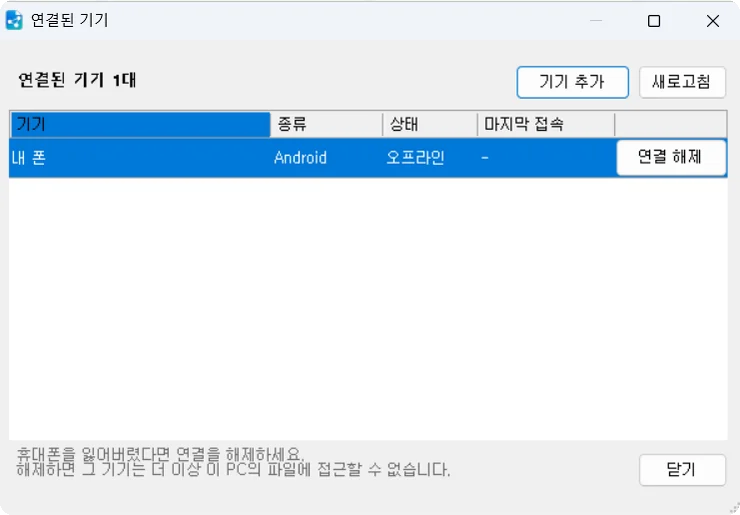
  • FileShare connected devices window with an unpair button

    Unpair a lost phone

    The device list shows what is linked and when it last connected. Unpair a phone you no longer have and it loses access immediately.

Windows only for now. FileShare runs quietly in the background and can start with Windows, so your documents are reachable without you thinking about it.

And the small things you actually use

  • Read aloudHave it read to you, and resume where you stopped.
  • Convert to PDFTurn an Office or HWP file into a PDF.
  • Jump to a wordTap a keyword to land on its page.
  • Export resultsCopy, save, or share to any app.
  • Fast searchFind a file across your whole device.
  • Page thumbnailsSkim a document at a glance.
  • FullscreenDrop the chrome and keep the text.
  • Folder browseWalk your storage the way you filed it.
  • Select and deleteClear several files in one pass.
  • FavoritesKeep the files you return to on top.
  • RescanRefresh the list after you move files around.
  • TXT editingEdit plain text files in place.

On-device by default

Your files never leave your phone

Finding, opening, searching, extracting keywords and reading a document aloud all happen in your device’s own storage. The one thing that uses a server is the AI summary — and even then the file is not sent. Only the sentences your phone already picked out go, and only when you press the button.

  • No account. Nothing to sign up for.
  • The document file itself is never uploaded, ever.
  • Keywords, key sentences and read-aloud run entirely offline.
  • AI summary is the exception: it sends the extracted sentences you can see on screen first.
  • PC transfers go device to device, not through our servers.
Read the Privacy Policy
Your files never leave your phone
Read without the interruption

Premium

Read without the interruption

Almost everything is open in the free version. Premium lifts the limits: the ads while you read, the daily cap on listening, the cap on AI summaries, and the cap on PDF conversions. Billing runs through the App Store or Google Play, and you can cancel there at any time.

$2.99/ monthThe yearly plan is about 30% cheaper. Prices vary by country.

  • No ads while you read
  • Unlimited document listening
  • Unlimited AI summaries
  • Unlimited PDF conversions

Frequently asked questions

What is PDFMon?

A reader for the documents you already have: PDF, Word, Excel, PowerPoint, HWP and plain text, all in one app. It also breaks a document down into keywords and key sentences, reads it aloud, and connects to your PC.

Is the app free?

Yes. Everything is open in the free version. Ads appear while you read, and three things have a free allowance: listening, AI summaries and PDF conversion. Premium removes the ads and the caps.

What does Premium give me?

No ads, unlimited listening, unlimited AI summaries and unlimited PDF conversions. It is $2.99 a month, and the yearly plan works out about 30% cheaper. Prices vary by country.

What can the app do?

Read PDF, Word, Excel, PowerPoint, HWP and text files. Extract keywords and key sentences, generate an AI summary, read a document aloud, convert Office and HWP files to PDF, search across your device, browse by folder, select and delete in bulk, keep favorites, view page thumbnails, jump between pages, go fullscreen, share to other apps, and open documents on your PC.

Can it read documents out loud?

Yes. Open a document, tap Listen, and it reads from where you are. It works on the analysis results too, so you can listen to just the summary. The free version covers a few documents a day; Premium removes that cap.

Can I turn a HWP or Office file into a PDF?

Yes. Open the file, choose Convert to PDF from the menu, and the PDF is saved alongside the original. The free version includes a small number of conversions; Premium makes it unlimited.

Does the AI summary send my document anywhere?

The file itself is never uploaded. Your phone extracts the key sentences first — you can see them on the Key sentences tab — and only those sentences are sent to produce the summary. They are deleted right after the answer comes back. Keywords, key sentences and read-aloud never leave the device at all.

How does the keyword extraction work?

It runs on your phone, counting how often each meaningful term appears and ranking them. Because it is local, it works with no signal, and tapping a keyword takes you to the page it came from.

Can I edit documents?

Plain text files only. Editing rich documents on a phone screen rarely goes well, so everything else opens read-only.

Can I read documents that are on my PC?

Yes. Install FileShare on your computer and scan the QR code from the My PC tab. After that the two devices talk to each other directly over a secure connection — no email, no messenger. As long as your PC is switched on you can reach its documents from anywhere, and you can send files from your phone back to it.

Does PC sharing cost anything?

No. FileShare is a free download and there are no limits on transfers. Premium covers the ads and the usage caps inside the phone app, not this.

Where do I get FileShare for PC?

Download it from the FileShare section on this page. It runs on Windows 10 and 11 (64-bit). macOS and Linux builds are not available yet.

Can the PC see everything on my phone, or the other way round?

Only what you allow. On the PC you add specific folders, and nothing outside them is reachable. Pairing needs a QR code that expires after five minutes, and either side can unpair a device — useful if you lose the phone.

Some of my files are missing from the list.

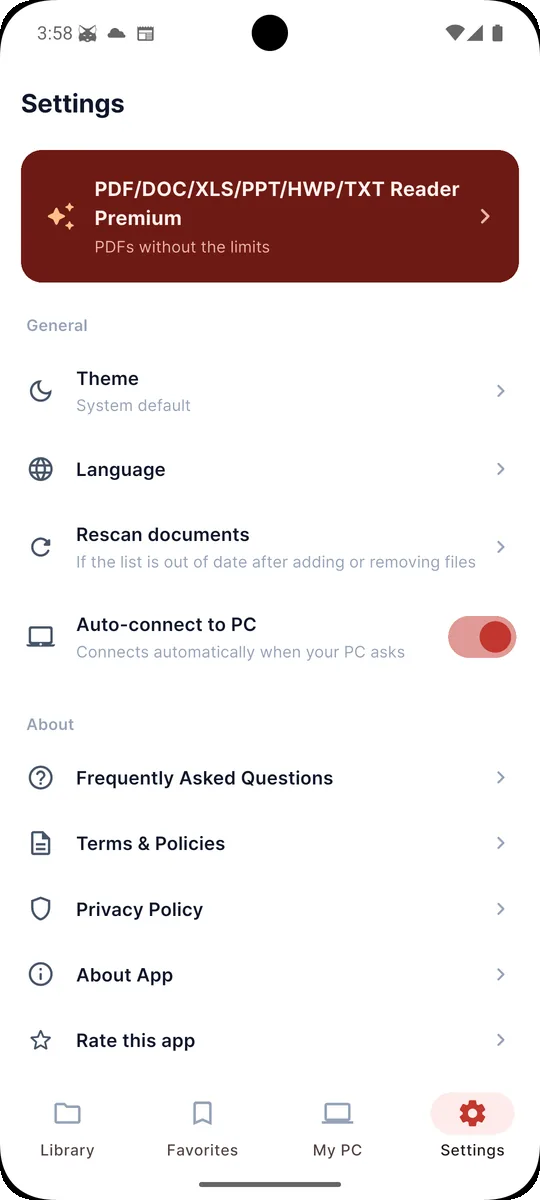
Open Settings and tap "Rescan documents". That refreshes the list after you add, move or delete files. On Android, also confirm the app has permission to read your storage.

How do I cancel Premium?

Subscriptions are managed by the store you bought them from — Settings on iOS, or Subscriptions in the Google Play app on Android. Cancelling there stops the next renewal.

The app cannot open one of my files.

Send the file name, format and your device model to support@pdfmon.com. Password-protected and damaged files are the usual cause.

Open your first document in about a minute.

Free on iOS and Android.